How it works
How to convert a picture to an N64 texture that fits TMEM (free tool)
To convert a picture to an N64 texture, you have to pick a format and a size that fit in the console's 4096 bytes of texture memory (TMEM), and then squeeze the colors into that format. The free N64 texture converter does all of it in your browser: drop in a picture, and it shows you the result, how much TMEM it uses, and gives you a PNG that libdragon's mksprite can read directly.
On this page
This page walks through the tool from the first picture to the downloads, explains the rules of the N64 that it keeps for you, and shows what happens to photos, drawings and pixel art at such small sizes.
What the tool is
It is a converter, and it is free: no account, no gems. It runs entirely in your browser as the Shiny Gen engine's own C++, the same code the cartridge build runs, compiled to WebAssembly. Nothing is uploaded; the page says so under the picture. Only the "Make a game with it" button sends your picture anywhere, and only after you press it.
Because it is the same converter our N64 games use, what you see is what the console gets. Our tests give byte-identical results to the engine across 172 cases, and 1,836 conversions across every setting extreme of our 5 consoles stay inside every hardware limit.
Step by step
1. Add a picture. Drop, paste or pick any picture your browser can open, at any size. Very large ones are read at most 2048 pixels on a side. If you just want to try it, there are four samples on the page: Photo, Drawing, Pixel art and Landscape.
2. Choose a format. The Format menu offers:
- Best for this picture, the automatic choice.
- RGBA16: 5-5-5 color with a 1-bit alpha.
- CI8: a 256-color palette.
- CI4: a 16-color palette.
- IA8: 4-bit intensity and 4-bit alpha.
- I8: 8-bit gray.
"Best for this picture" converts your picture in every format that fits at the size you chose, measures each result against the picture, and keeps the closest one. If two tie, it prefers the one with more color depth.
3. Choose a size. Sizes are powers of two from 8 to 64 on a side. The menu only lists sizes that actually fit the chosen format, so you cannot pick one the console cannot hold. A picture that is not square is center-cropped to the shape you pick, never squashed.
4. Dithering and background. Dithering is Off or On and matters for the CI formats. For the background choose Remove a plain background, Keep it, or Pick a color to remove (tap the color, then set the tolerance). Every setting offered is one the console can do; an impossible one is moved to the nearest legal value and the tool says so.
Look at the result
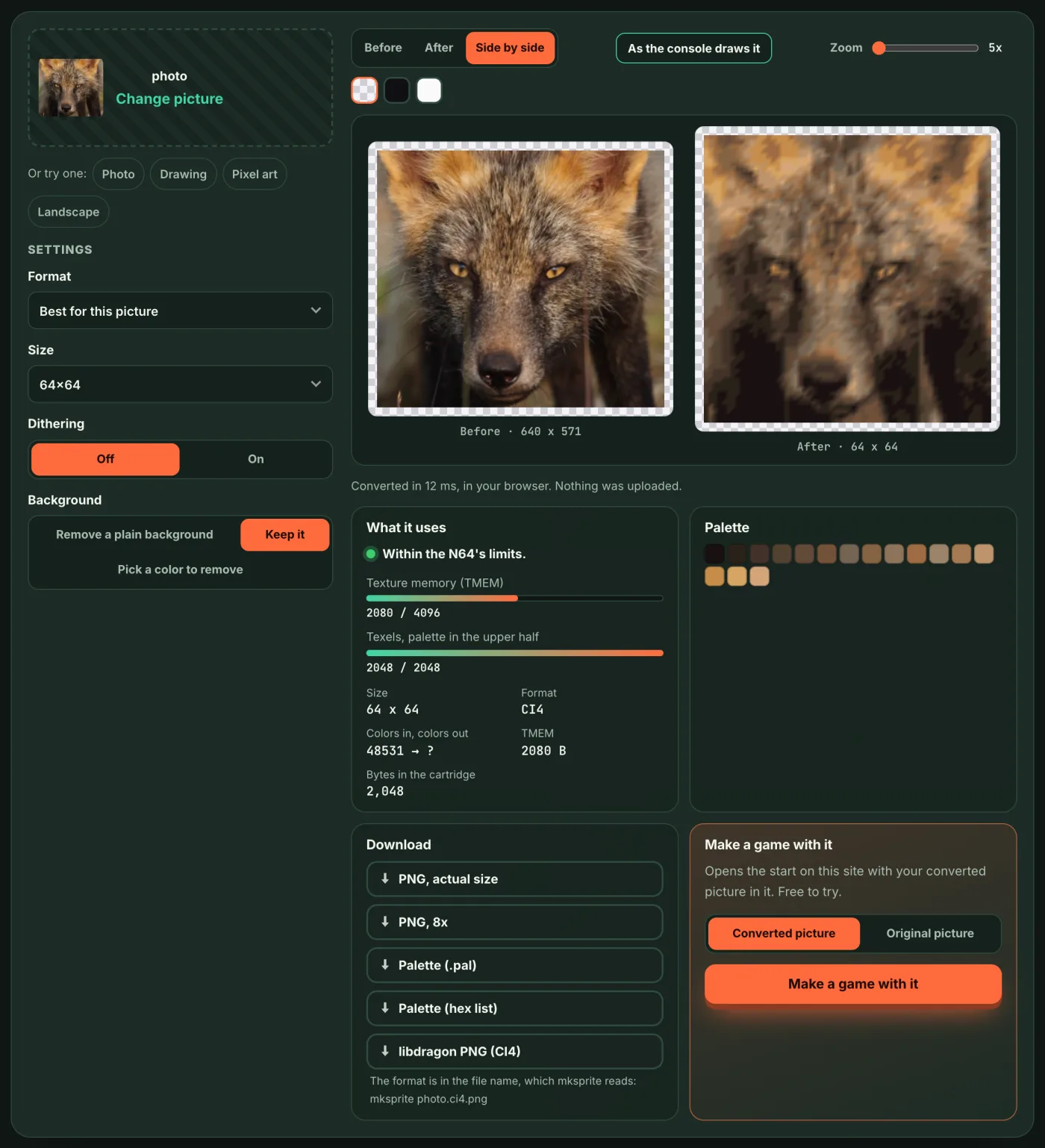
The preview has Before, After and Side by side views, a nearest-neighbor zoom, and checkerboard, dark and light backgrounds.
One button matters a lot for N64 work: As the console draws it versus Raw pixels. The N64 does not filter textures like a modern GPU. It uses a 3-point filter that blends 3 texels, not 4. The same CI4 texture of a cat drawing, shown with the filter:
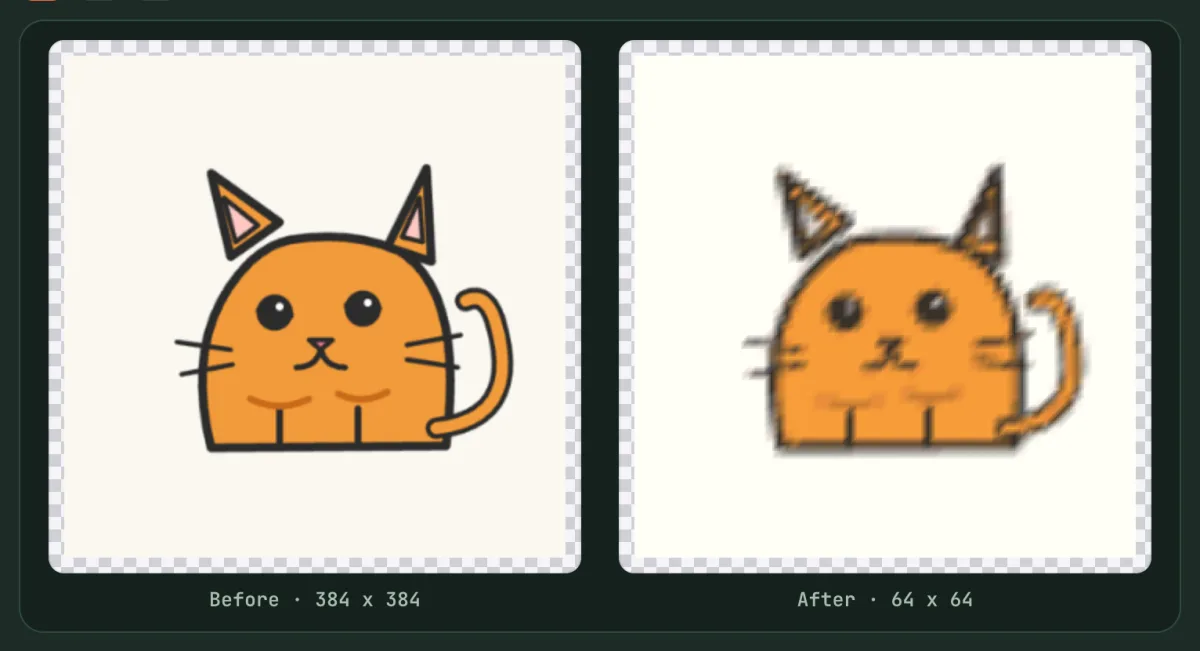
And the same texture as raw pixels:
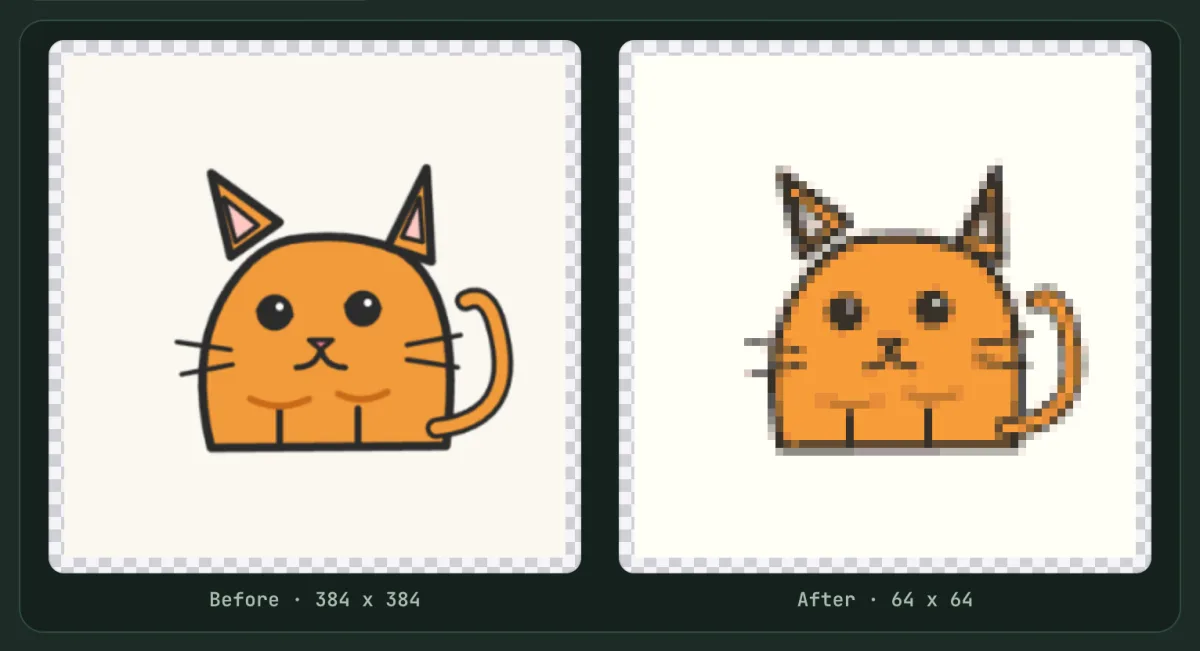
The raw view is the data you ship; the filtered view is closer to a game. Check both: a thin whisker that looks fine raw can smudge once the filter blends it.
Read the "What it uses" meters
The panel under the picture says "Within the N64's limits" when the texture fits, and shows meters:
- Texture memory (TMEM): how much of the 4096 bytes the texture takes. The fox in the first screenshot uses 2080 of 4096.
- Texels, palette in the upper half: for CI formats only. This one is x / 2048.
Why two meters? TMEM is 4096 bytes. Our engine counts the palette with the texels (a CI4 palette is 32 bytes, CI8 512), and the palette sits in the upper half of TMEM, as libdragon's rdpq_tex.h says. So a CI texture's texels must fit 2048 bytes. A 64 x 64 CI4 texture is exactly 2048, which is why that meter is full and still green.
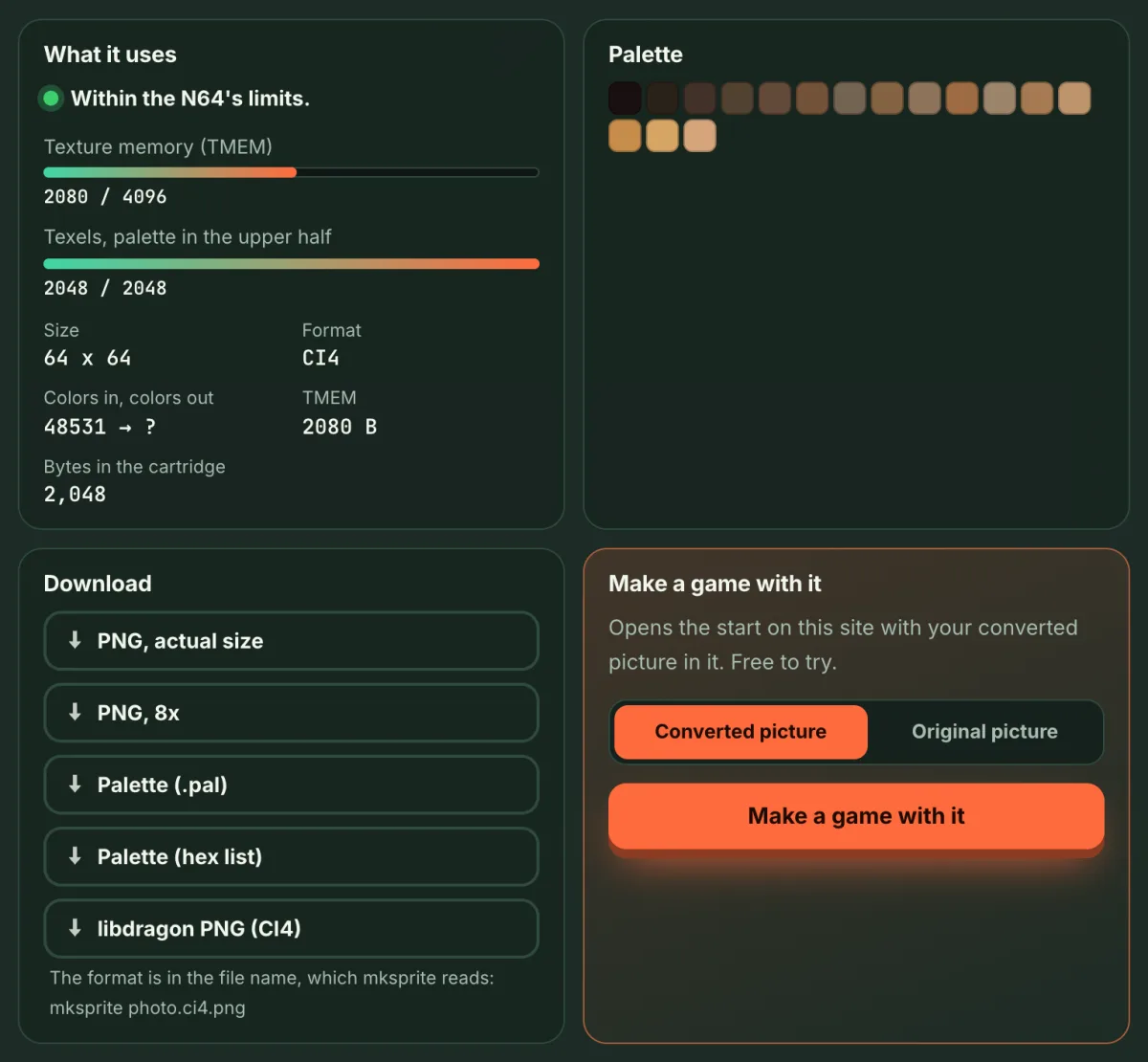
The palette is shown as swatches, and clicking one copies its hex value.
The N64's rules the tool keeps
| Format | What it stores | Largest size the menu offers |
|---|---|---|
| RGBA16 | 5-5-5 color, 1-bit alpha | 32x32 or 32x64 (4096 B), or 64x32 |
| CI8 | 256-color palette | 32x64 or 64x32 |
| CI4 | 16-color palette | 64x64 |
| IA8 | 4-bit intensity, 4-bit alpha | 64x64 |
| I8 | 8-bit gray | 64x64 |
RGBA16 spends 2 bytes a pixel, so it tops out at 32 x 32 or the 32 x 64 shapes. CI4 spends half a byte and fills 64 x 64, but only with 16 colors.
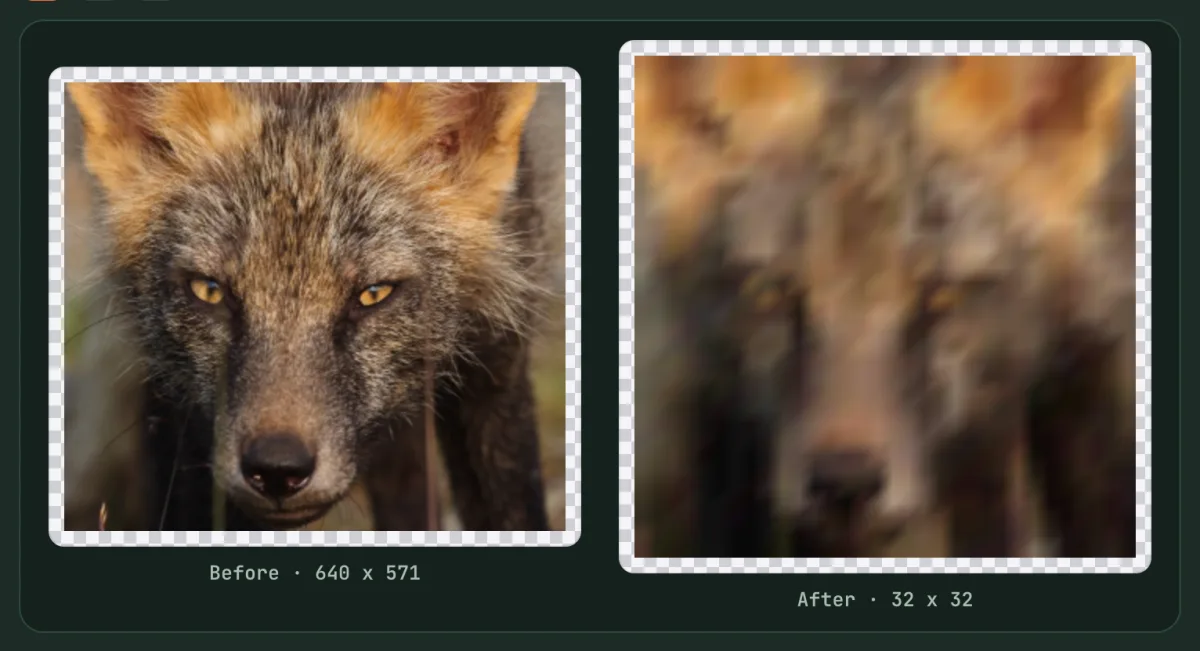
Compare it with the hero picture: 64 x 64 in CI4 keeps the eyes and the nose, while 32 x 32 in full color loses most of the detail. "Best for this picture" tries these trade-offs for you.
Tips: photos, drawings and pixel art
Photos. The hardest case. The fox photo ends up with a 16-color palette and still reads as a fox, because the shapes and the dark and light areas survive. Pick a photo with a clear subject, and try dithering On and Off.
Drawings. Flat colors and bold outlines convert well. The cat keeps its orange body, outline and eyes; what suffers is anything thinner than a texel, such as whiskers. Thicken the line in the original, or remove a plain background so the cat fills the texture.
Pixel art. Art already drawn on a small grid is the best fit, and it keeps its frame when you remove a plain background. Check it with "Raw pixels", since the console view softens edges.
Downloads
- PNG, actual size and PNG, scaled (a larger copy for viewing).
- Palette (.pal) and Palette (hex list) for the CI formats.
- libdragon PNG, named
<name>.<format>.png, for examplehero.ci4.png. For CI4 and CI8 it is an indexed PNG with the exact palette.
libdragon's mksprite reads the format from the file name and keeps an indexed PNG's palette (it is in mksprite.c), so the command is just:
mksprite hero.ci4.pngThat is why the file name matters: rename it and mksprite reads a different format.
Make a game with it
Under the downloads, Make a game with it puts your converted picture (or the original) into this site's start card. There you add a few words and start an AI game session that builds a playable N64 game with your picture in it. It is a Shiny Gen account on the site, and a new account starts with free gems.
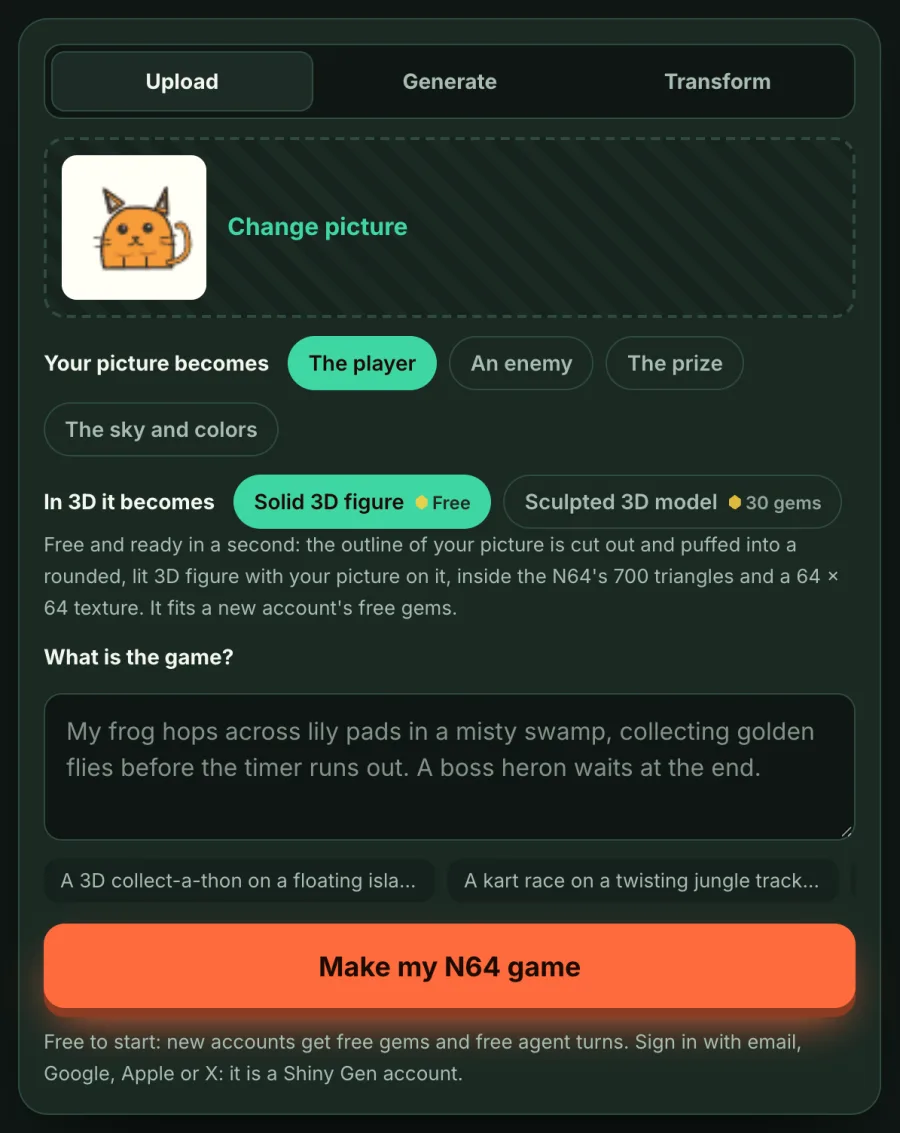
See how to turn a picture into an N64 game, or Make an N64 game with AI on shinygen.ai. If you only came for the texture, the free N64 texture converter is all you need.
FAQ
Is the N64 texture converter really free?
Yes. No account, no gems, nothing uploaded unless you press "Make a game with it".
Why is the biggest size only 64 x 64?
Because TMEM is 4096 bytes, and a CI texture's palette has to fit too. The size menu only lists sizes that fit the chosen format.
What does "Best for this picture" do?
It converts in every format that fits, measures each against the picture, and keeps the closest.
Why does the preview look blurrier than the raw pixels?
The N64 filters textures with a 3-point filter that blends 3 texels, not 4. "As the console draws it" shows that. "Raw pixels" shows the stored texture with no filtering.
How do I get the texture into a libdragon project?
Download the libdragon PNG, for example hero.ci4.png, and run mksprite hero.ci4.png. The format is read from the file name, and for CI4 and CI8 the indexed PNG keeps the exact palette.
Does the tool change a picture that is not square?
It center-crops the picture to the shape of the size you choose. It never squashes it.
Further reading
Last updated: November 17, 2026